
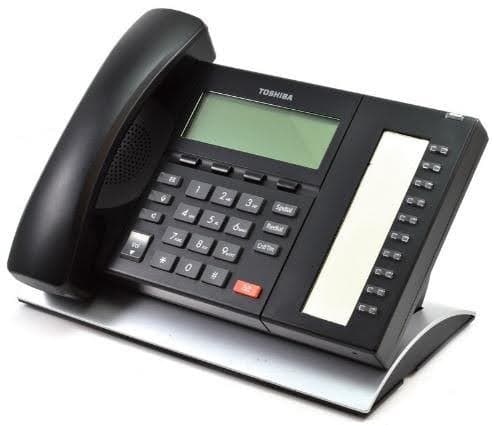
Toshiba DP5022-SDM
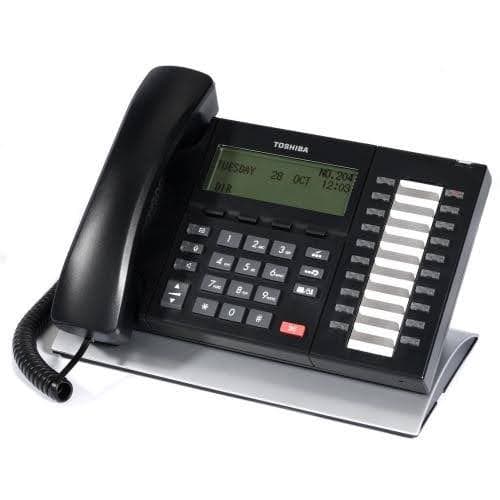
The Toshiba DP5022-SDM is a digital telephone for Strata CIX systems, with 22 programmable buttons and a backlit lcd display. Our certified Toshiba technicians can supply, program, and support it — remote or onsite.
- Series
- 5000 Series
- Type
- Digital
- Programmable buttons
- 22
- Display
- 4-Line by 24-Character Non-Backlit LCD Display
- Speakerphone
- Speakerphone
- Color
- Charcoal (Black)
- Released
- 2007
- Discontinued
- 2018
- Mfr. support through
- 2021
- Compatible systems
- Strata CIX
About the Toshiba DP5022-SDM
The DP5022-SDM is a reliable 5000 series multi-line telephone from Toshiba's 5000 series, first released in 2007 replacing the 3200 series digital phones.
These phones incorporate state-of-the-art telecommunications technology and provide a vast array of calling features that are accessible with a feature button or a brief access code. The device offers Alphanumeric Messaging, Busy Lamp Field (BLF) Identification, Central Office (CO) Line Identification, Timed Reminders with Messaging, Speed Dial Memo Directory Dialing, User Name/Number, Call Duration, and Date/Time of Day displays, plus caller identification capabilities.
Features & capabilities
- 4-Line by 24-Character Non-Backlit LCD Display
- 4 LCD soft keys
- 10 programmable keys with dual color LED indicators
- 8 fixed feature keys: Voice Mail, Off-Hook, Speaker, Conference/Transfer, Redial, Hold, and Speed Dial
- Built-In Half Duplex Speakerphone
- Red/Green LED indicators
- Auto Attendant and Voice Mail call handling
- Only compatible with the CIX40
Button & feature reference
Standard Toshiba button, soft-key, and programmable-feature reference for 5000 Series and compatible Strata telephones. See “Features & capabilities” above for this model’s specific buttons.
Fixed feature buttons8
| Cnf/Trn | Conference/Transfer button Press to set up a conference and transfer calls. |
|---|---|
| Hold | Hold button Press to hold internal or outside calls. |
| Mic | Microphone button Press to turn the microphone off/on while the telephone is in use. |
| Msg | Message Waiting button The Msg LED flashes to indicate that a message is waiting. After accessing the intercom, press the Msg button to call back the station or voice-mail device that activated the LED. |
| Spdial | Speed Dial button For Private (Station) Speed Dial, press Spdial + nnn (nnn = 100–199). For System-Wide Speed Dial, press Spdial + nnn (nnn = 200–999). |
| Redial | Redial button Press to have the system redial the last telephone number you dialed. |
| Spkr | Speaker button Press to turn the speaker on/off. The Spkr button will also select a line or the intercom if programmed for auto preference in system programming. Also used to disconnect on-hook speakerphone calls. |
| Vol ▲ / Vol ▼ | Volume buttons Press to adjust volume levels. |
LCD soft-key prompts18
| Soft key | Definition |
|---|---|
| ABR | Activates Automatic Busy Redial after dialing a busy outside telephone number. |
| ACB | Activates Automatic Callback after reaching a busy station, CO line, or CO Line group. |
| BUSY | (Busy Override) Sends a call-waiting tone to a busy station. |
| CONF | Initiates or completes a conference. |
| EXEC | (Executive Override) Breaks into the conversation of a busy called station. |
| EXIT | Exits you from a conference; remaining parties are connected. |
| JOIN | Joins all parties to a conference while on a conference call. |
| LINE | Adds a CO line to an existing call while in the Conference mode. The LCD prompts you to access a CO line after you press this key. |
| MESG | Sets a message-waiting indication at a busy or unanswered station. |
| OVRD | Overrides options, busy mode, or overrides Do Not Disturb mode. |
| PGE | Enables you to enter a Page Group number (01~16). |
| RING | Makes a called station ring when making a voice-announce call to the station. |
| RLS | Disconnects a call and returns the telephone to the idle state. |
| RTRN | Terminates a feature operation and returns to a previously displayed state. |
| SPLT | Enables you to break off from a conference call with another member for a private conversation (split). Use the Join key to reconnect both of you into the conference. You must be a conference master to use this. |
| STA. | Adds a station to an existing call while in the Conference mode. The LCD prompts you to dial a station number after you press this key. |
| TALK | Makes a voice announcement to a called station that is ringing. |
| TRNS | Initiates or completes a Transfer while on an outside call. Press once for an immediate or announced transfer (per system programming); press TRNS again to complete the transfer. |
Programmable feature buttons36
| Account Code | Account Code button Press to enter a Voluntary Account Code anytime during a CO line call without interrupting the conversation. |
|---|---|
| Alarm Reset | Alarm Reset button Press to turn off a telephone alarm connected to a facility alarm mechanism (PIOU). |
| All Call Page | All Call Voice Page button Press to page all of the digital and electronic telephones in the All Call Page group. |
| Auto Busy Redial | Automatic Busy Redial button Press to set up Automatic Busy Redial after receiving busy tone on a dialed CO line call. |
| Auto Callback | Automatic Callback button Press to recall a busy station or station in Do Not Disturb (DND) as soon as it becomes idle or deactivates DND. Also used for CO line queuing. |
| Call Frwd All Calls | Call Forward–All Calls button Press to forward all calls to another station or voice-mail device. |
| Call Frwd Busy | Call Forward–Busy button Press to forward calls immediately to another station or voice-mail device when your station is busy or in Do Not Disturb mode. |
| Call Frwd Busy NAns | Call Forward–Busy/No Answer button Forwards calls immediately when your station is busy or in DND, and forwards calls not answered after three rings or 12 seconds. |
| Call Frwd No Answer | Call Forward–No Answer button Press to forward calls to another station or voice-mail device when your station is not answered after three rings or 12 seconds. |
| Call Frwd to: ____ | Call Forward–Fixed button Press to forward all calls to a station or voice-mail device assigned in system programming. |
| Data Call | Data button Press to enable manual dialing of internal data calls. See the Strata DK Data Interface User Guide. |
| Data Release | Data Release button Press to release data calls. See the Strata DK Data Interface User Guide. |
| Directed Pickup | Call Pickup button Press to initiate a Directed Call Pickup of CO line, intercom and page calls. |
| Directed Pickup 1 / 2 | Tenant Call Pickup buttons In a two-tenant system, Directed Pickup1 picks up Tenant 1 ringing CO line calls and Directed Pickup2 picks up Tenant 2 ringing CO line calls. |
| Do Not Disturb | Do Not Disturb button Press to lock your station in or out of the Do Not Disturb (DND) mode. |
| DSS | Direct Station Selection button(s) Press to ring a preselected station. The LED for each DSS button provides the idle/busy status of the assigned station. |
| Flash | Flash button Disconnect and recall dial tone on a CO line; access Centrex or PBX features; or enter a pause or flash signal when programming Speed Dial numbers. |
| Intercom | Intercom button Press to access the intercom. |
| LCD Msg Select | Message Select button Press to allow system and personal messages to be displayed on the optional 32-character LCD. |
| Line | Line button Press to access an outside line. |
| Microphn Cut-off | Microphone Cutoff button Press to turn the microphone off/on while idle, providing privacy on hands-free intercom calls. |
| Modem | Modem button Press to reserve a modem from a pool. The LED indicates the status of the modem pool. See the Strata DK Data Interface User Guide. |
| Night Transfer | Night Transfer button Press to control the system's CO line ringing pattern for after-hours incoming calls. |
| Night Transfer 1 / 2 | Tenant Night Transfer buttons Press the appropriate button to control after-hours CO line ringing patterns for either tenant sharing a single Strata DK system. |
| Pooled Line Grp | Pooled Line button Press to access an available CO line from a group of lines appearing under one button. |
| Privacy on Line | Privacy button Press to block Privacy Override on common CO line buttons. Does not block Busy Override or Executive Override. |
| Privacy Release | Privacy Release button Press to release privacy on common CO line buttons, enabling other stations to enter your conversations. |
| Release Call | Release button Press to disconnect a call and place your station in the idle condition. |
| Save Last Number | Save button After dialing a number, press to save it so the system can automatically redial it later when you press the button. |
| SD | Speed Dial button Press to Speed Dial a telephone number or feature access codes. |
| Speed Dial | Speed Dial Select Press to store and to access Speed Dial numbers. |
| Spd Dial Lng Pause | Pause (Long) button Press to insert a 10-second pause when programming Speed Dial numbers. |
| Spd Dial Pause | Pause button Press to set either a one-half or two-second pause when programming Speed Dial numbers (set in system programming). |
| Tel Set Music | Background Music button Press to turn Background Music on or off over your station speaker. |
| Tone Dial Select | Tone button Press to change the outgoing dialing of the CO line in use from dial pulse to tone signaling. |
| Unlock Door | Door Lock button Press to unlock a door lock mechanism. |
More 5000 Series phones
View all
Need help with a Toshiba DP5022-SDM?
Our certified technicians can supply, program, and support it — remote or onsite.